
 Viktor Stoliarenko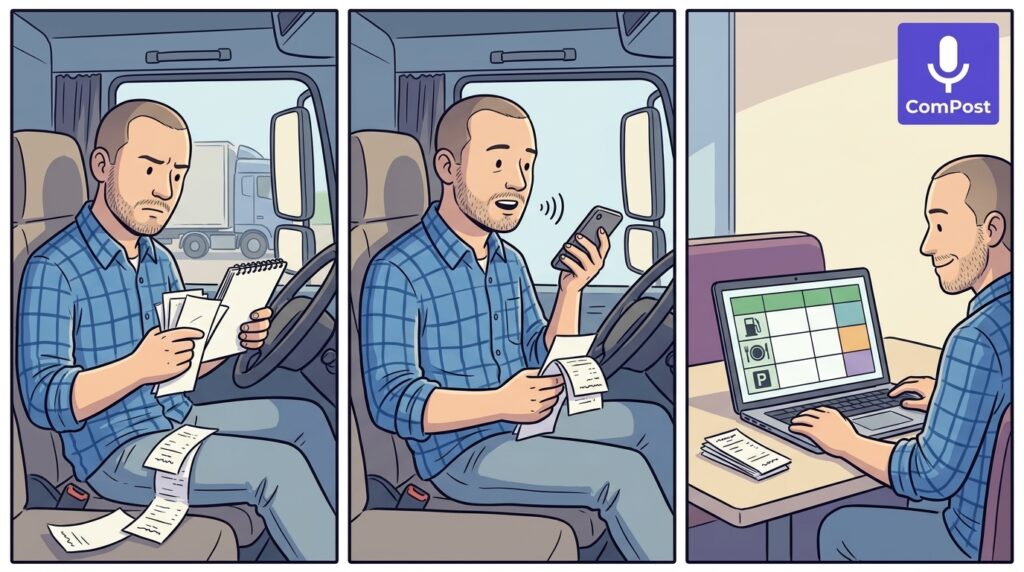
I was chatting with a friend of mine who drives a truck, and I asked:
“Hey, do you actually write down your expenses? Keep notes on bits of paper, that sort of thing?”
“Yeah, I do.”
“Where do you put them?”
“All over the place, really. Sometimes on a piece of paper, sometimes in a notebook. Say I pay for parking — I write it down. Then I show my boss, and he pays me back.”
And I thought: why not make him a prompt? Something that puts it all into one Google Sheet, so there’s no gathering up paper notes later. And something that takes as little time as possible: say what you spent, get the rows in your spreadsheet.
That’s how Truck Driver Expense Log for ComPost came about.
What you’ll need
To use this prompt, you’ll need to download ComPost for Android from Google Play. You can get the prompt here.
Then it’s pretty straightforward. You can record one expense or several at once: where you filled up, what you paid for lunch, how much parking cost. Just say what you spent the money on, how much, in which currency, where, and when.
For example:
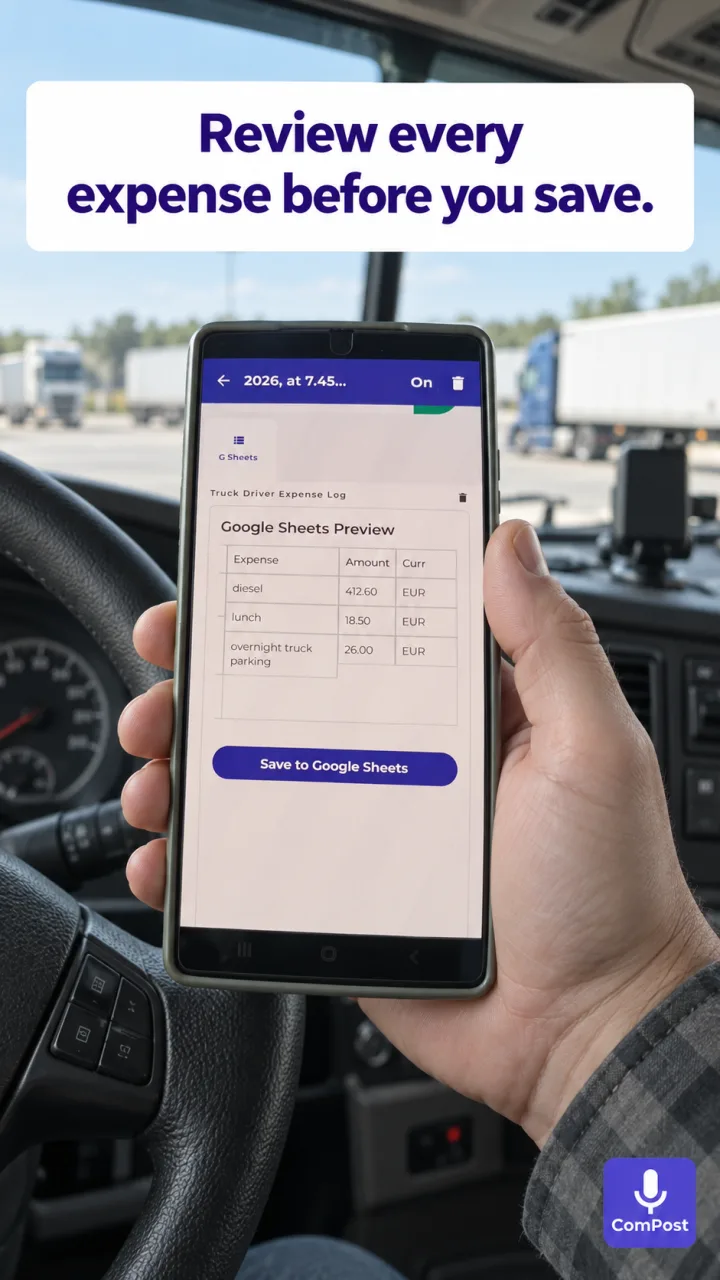
“On September eighteenth at seven forty-five, I bought fuel in Ljubljana for four hundred twelve euros and sixty cents. At twelve thirty, I paid eighteen euros and fifty cents for lunch in Maribor. At six ten in the evening, I paid twenty-six euros for overnight truck parking in Graz.”
That gives you three rows: fuel, lunch, and parking. Each has a date, time, location, expense description, amount, and currency. If you’re recording expenses from an earlier day, just say the date you mean.
How it works
Below are the real ComPost and Google Sheets interfaces. The expenses in this example were dictated in English, so the descriptions in the spreadsheet are in English too. The prompt keeps the language of your dictation.
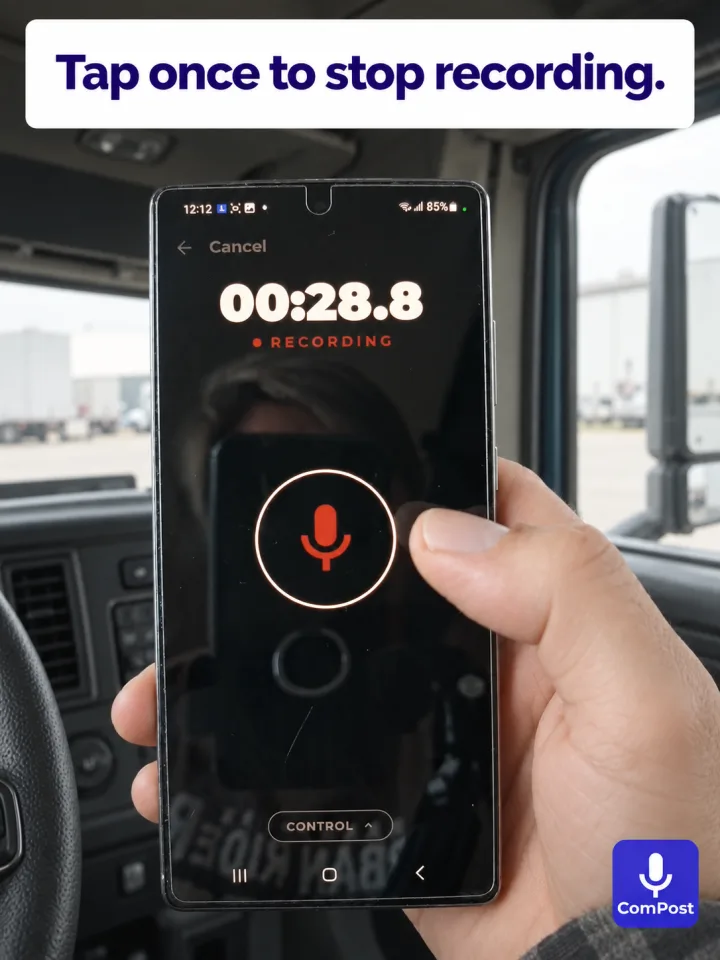
1. I record a voice note. With the truck parked, I open ComPost and list the expenses. I can check the receipts and describe several purchases in one go.
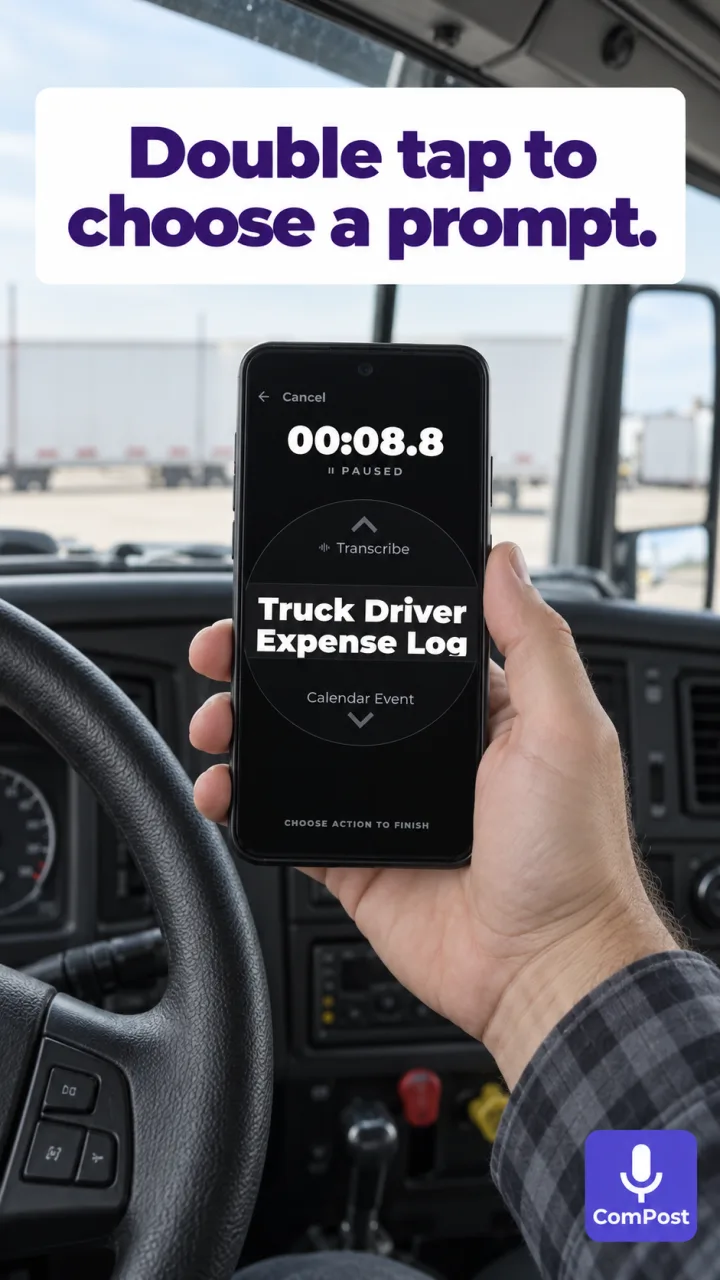
2. I choose the prompt. I stop the recording and select Truck Driver Expense Log.
3. I check the result. ComPost puts the expenses into columns and shows a spreadsheet preview. I check the amounts, dates, and currencies to make sure they match what I said.
4. I open Google Sheets. With the integration connected, the expenses are saved as separate rows. There’s no need to type each one again: the records are already in the spreadsheet.
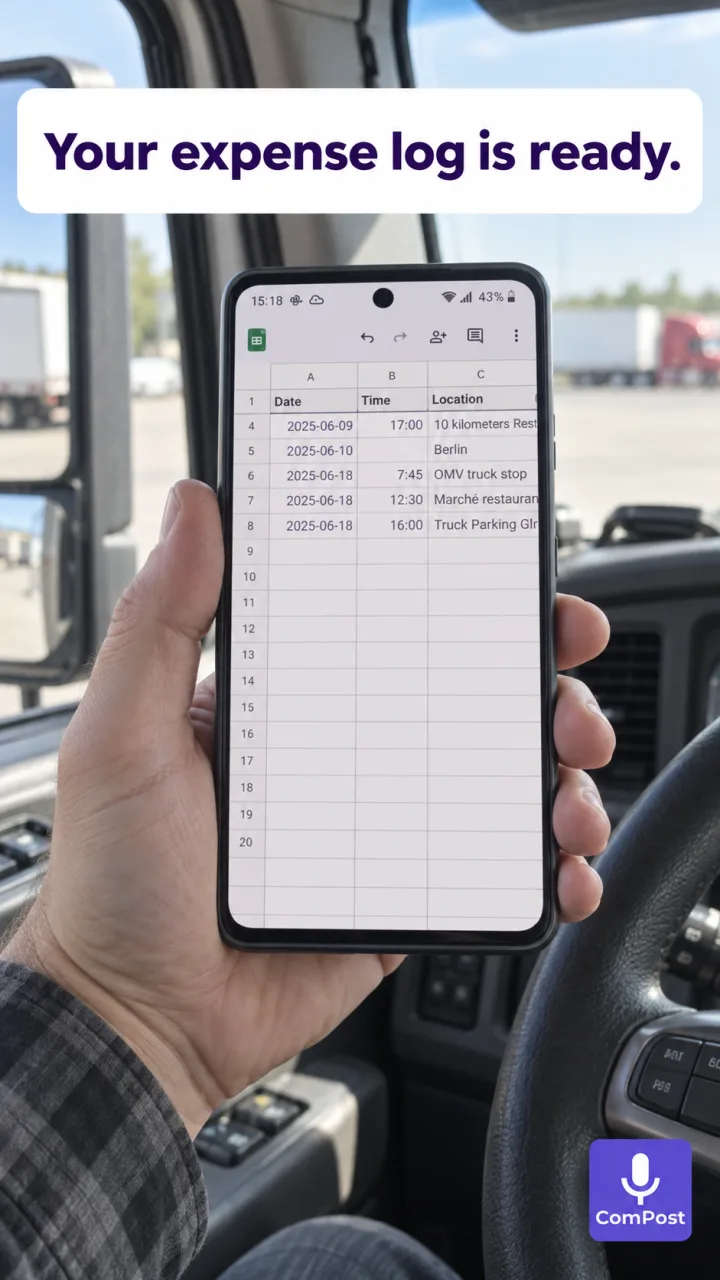
And then it’s all in one place
At the end of a trip, you can open the spreadsheet and show your manager what you spent. Or send a link by email or in a message — just remember to give the recipient access to the sheet.
You don’t have to piece one list together from a notebook, another from phone notes, and a third from whatever the receipts remind you of. Once you’ve recorded an expense, you know where to look for it.
Keep any receipts you need for reimbursement. The spreadsheet helps you keep track of expenses; it doesn’t replace supporting documents.
Want to try it? Download ComPost, add Truck Driver Expense Log, and record your expenses by voice.

Discussion
Discuss this article with other readers.